How to Deselect in Photoshop (Selections and Layers)
To deselect in Photoshop, press Ctrl+D on Windows or Cmd+D on a Mac, or choose Select > Deselect. The marching ants disappear and your brushes, fills and filters work on the whole layer again. Below you will also find how to deselect layers, remove only part of a selection, get a selection back, and what to check when Ctrl+D does nothing.
Quick answer
- Deselect: Ctrl+D (Windows) or Cmd+D (Mac), or Select > Deselect
- Undo a deselect: Shift+Ctrl+D or Shift+Cmd+D, or Select > Reselect
- Deselect layers: Select > Deselect Layers (Ctrl+D does not deselect layers)
- Photoshop on iPad: tap Deselect in the selection bar at the bottom of the screen
Every Way to Deselect in Photoshop
An active selection is shown as a moving dashed outline, often called marching ants. Any of these clears it:
| Method | Windows | Mac | Good to know |
|---|---|---|---|
| Keyboard shortcut | Ctrl+D | Cmd+D | Fastest. Works with any tool, except while you are typing text. |
| Menu | Select > Deselect | Select > Deselect | Greyed out when nothing is selected. |
| Click outside the selection | One click, no drag, with a Marquee or Lasso tool | Only in New Selection mode. Dragging inside the selection moves the outline instead. | |
| Photoshop on iPad | Tap Deselect in the bar under the canvas | The bar appears as soon as you make a selection. | |
Want the background instead of the subject? Don't deselect and start over: press Shift+Ctrl+I (Shift+Cmd+I) or choose Select > Inverse to flip the selection. To soften the edge before you deselect, see how to feather a selection.
How to Deselect a Layer in Photoshop
Deselecting a selection and deselecting a layer are two different things. Ctrl+D clears the marching ants; it does not change which layers are highlighted in the Layers panel. To deselect layers:
- All layers: choose Select > Deselect Layers. It has no shortcut by default; you can add one in Edit > Keyboard Shortcuts under Application Menus > Select.
- One layer of several: Ctrl-click (Cmd-click) that layer in the Layers panel to remove it from the selection.
- Click the empty area below the bottom layer in the Layers panel. In some recent versions a plain click there no longer works and you have to Ctrl-click (Cmd-click) it.
With no layer selected, the Move tool can't nudge a layer by accident. The opposite command, Select > All Layers, is Alt+Ctrl+A (Option+Cmd+A).
How to Deselect Part of a Selection
You don't have to clear everything to fix one corner. Subtract the part you don't want:
- Hold Alt (Option on a Mac) and drag with the Marquee, Lasso or Quick Selection tool over the area to remove. A small minus sign appears next to the cursor.
- Or click Subtract from selection in the options bar, then drag.
- Hold Shift to add to the selection instead, or Shift+Alt (Shift+Option) to keep only the overlap.
For hair or soft edges, refine the outline in Select > Select and Mask, or press Q for Quick Mask and paint with black to remove areas, then press Q again.
How to Get a Selection Back After Deselecting
Spent ten minutes on a Lasso selection and pressed Ctrl+D by accident? It isn't lost:
- Press Shift+Ctrl+D (Shift+Cmd+D) or choose Select > Reselect. Photoshop restores the last selection you cleared.
- Or press Ctrl+Z (Cmd+Z) to undo the Deselect step. More on this in how to undo in Photoshop.
- For a selection you will need again later, choose Select > Save Selection. Photoshop stores it as a channel in the document, and Select > Load Selection brings it back, even after you save and reopen the PSD.
How to Hide Marching Ants Without Deselecting
When you're judging a color change, the moving outline gets in the way. Press Ctrl+H (Cmd+H) to hide it. This toggles View > Extras, so guides and the grid hide too. The selection stays active, and adjustments still only apply inside it. Press the same keys to show it again.
A hidden selection is easy to forget, and it's a common reason a brush seems to stop working. Press Ctrl+D when you're done.
Ctrl+D Not Working? 7 Things to Check
- The selection is there but you can't see it. It may be a tiny selection, off the visible part of the canvas, or hidden with Ctrl+H. If your brush paints nothing, press Ctrl+D anyway, then try again.
- You're editing text. While the text cursor is blinking in a type layer, menu shortcuts like Ctrl+D don't reach the Select menu. Commit the text first with Ctrl+Enter (Cmd+Return) or the check mark in the options bar.
- A transform or crop is still open. Press Enter to apply it or Esc to cancel, then deselect.
- Quick Mask mode is on. The image shows a red overlay instead of marching ants, and the document tab says Quick Mask. Press Q to turn it into a normal selection, then press Ctrl+D.
- It's a path, not a selection. Pen tool paths are thin solid lines, not moving dashes. Click an empty area of the Paths panel to hide the path, or press Shift+Ctrl+H (Shift+Cmd+H).
- It's a bounding box, not a selection. A box with square handles around a layer comes from Show Transform Controls in the Move tool's options bar. Turn that option off. Thin outlines around every layer come from View > Show > Layer Edges.
- The shortcut was changed. Open Edit > Keyboard Shortcuts and check that Select > Deselect is still Ctrl+D, or pick Photoshop Defaults in the Set menu.
Step by Step: Deselect and Bring It Back
Check that a selection is active
Look for the moving dashed outline on the canvas. A red overlay instead means Quick Mask mode is on; press Q to leave it first.
Press Ctrl+D or Cmd+D
Or choose Select > Deselect. The outline disappears and edits apply to the whole layer again.
Bring it back if needed
If you deselected by mistake, press Shift+Ctrl+D (Shift+Cmd+D) or choose Select > Reselect.
Deselect layers instead
To clear the highlighted layers in the Layers panel rather than the marching ants, choose Select > Deselect Layers.
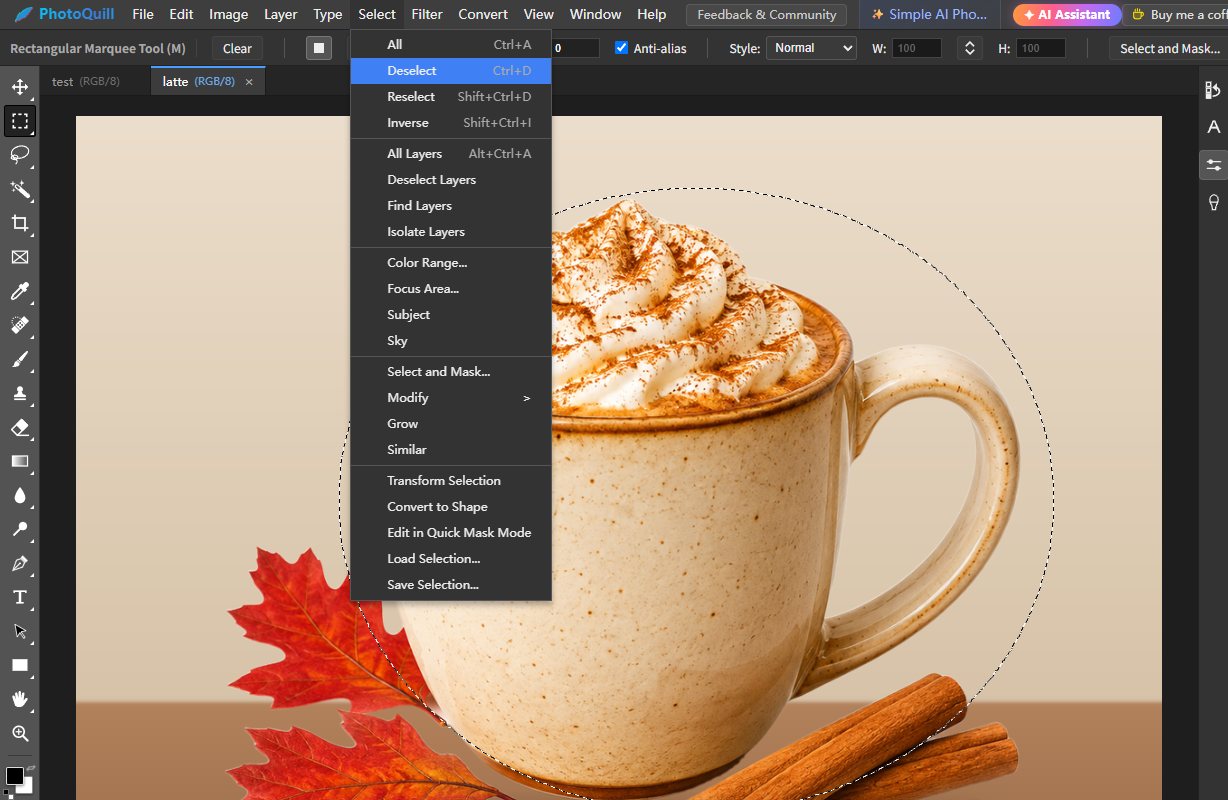
Deselect in PhotoQuill (Free, in Your Browser)
No Photoshop subscription? PhotoQuill is a free editor that runs in your browser with Photoshop's Select menu and shortcuts, so everything above works the same way:
- Ctrl+D (Cmd+D) or Select > Deselect clears the selection.
- One click outside the selection with a Marquee or Lasso tool also clears it.
- Shift+Ctrl+D reselects, Shift+Ctrl+I inverts, and Select > Deselect Layers, Save Selection and Load Selection are in the same menu.
- One difference: PhotoQuill has no Extras toggle, so Ctrl+H does not hide the marching ants.
It opens PSD files with their layers and saves them back as PSDs, with no download and no account.